
You’ve invested in a pro controller—but are you truly unlocking its full competitive potential? Too many players rely on default settings, leaving precision, reaction speed, and consistency untapped. This guide to pro controller optimization is built for gamers who want more than basic setup instructions. We break down the exact hardware tweaks, sensitivity adjustments, button remapping strategies, and ergonomic refinements used in high-level competitive play. If you’re looking to transform your controller from a standard accessory into a performance-enhancing tool tailored to your playstyle, this step-by-step guide will help you gain a measurable edge where it matters most: in-game.
Beyond the Basics: Physical Adjustments for Peak Performance
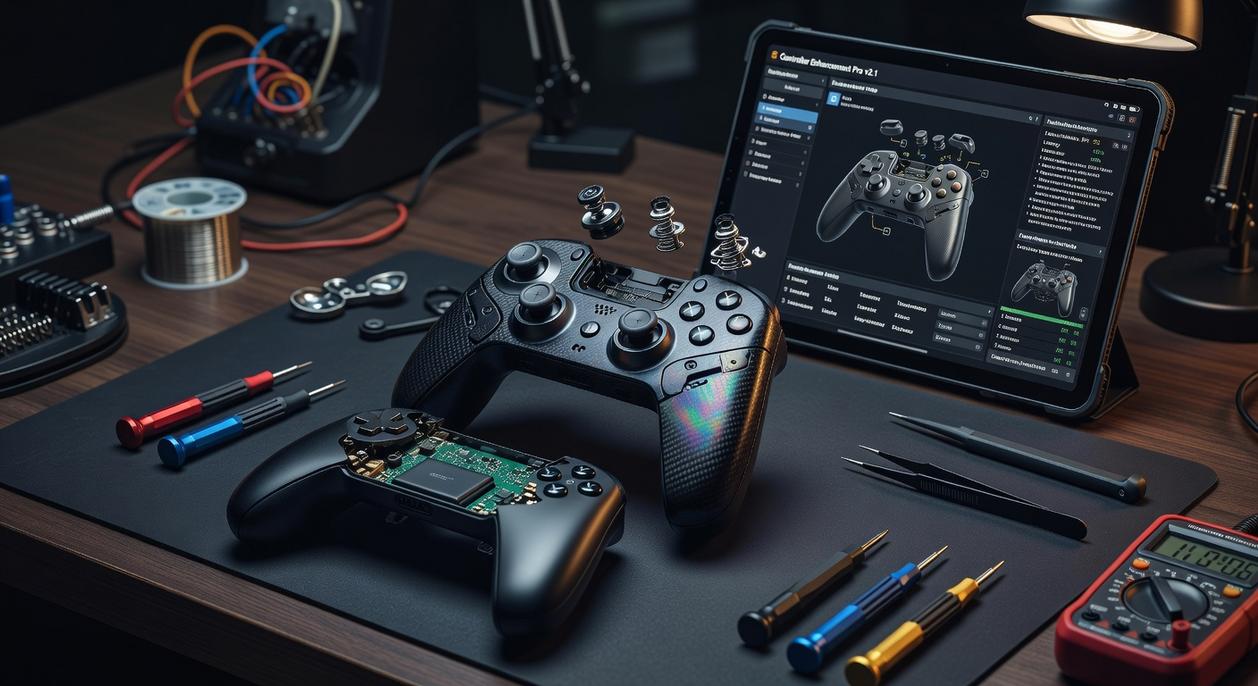
When it comes to controller setup, small hardware tweaks can create noticeable performance gaps. Take swappable thumbsticks. A taller, convex stick on the right (aiming) increases arc distance, which improves micro-adjustments and long-range precision. In contrast, a shorter, concave stick on the left (movement) enhances grip and faster directional inputs. Precision vs. speed. Height vs. control. It’s not cosmetic—it’s physics (longer levers create finer input control).
Next, consider trigger stops and hair-trigger locks. Standard triggers require full travel; shortened triggers reduce actuation distance. In FPS scenarios, that means faster single-shot firing and quicker aiming down sights (ADS). Some argue the difference is negligible. However, reduced input latency—even by milliseconds—can influence outcomes in competitive play (see research on reaction time advantages in esports, IEEE, 2019).
Then there’s the back paddle advantage—the single biggest upgrade. Mapping jump, crouch/slide, reload, or weapon swap to paddles keeps thumbs on the sticks. A vs. B: move your thumb to press a face button, or never leave aim. The choice impacts reaction time.
Finally, textured grips prevent slippage during intense sessions, while adjustable weight offers stability vs. agility trade-offs. Heavier can steady aim; lighter reduces fatigue. Pro tip: test weight in 30-minute intervals before settling. This is pro controller optimization done right.
Mastering Your Aim: Calibrating Sticks and Triggers in Software
If your aim feels “off,” it’s rarely your reflexes. It’s usually your settings. Let’s fix that.
Setting Your Deadzones
A deadzone is the small area around your analog stick’s center where movement isn’t registered. Developers add it to prevent stick drift (when your character moves without touching the stick).
Here’s the actionable method:
- Lower your inner deadzone to 0.
- Enter a quiet training range.
- Slowly raise the value until drift completely stops.
- Add 1–2% extra for stability.
That’s your lowest safe setting for instant input recognition. (Yes, it’s tedious. No, you shouldn’t skip it.)
Some argue higher deadzones improve control by filtering micro-movements. Fair—but higher settings delay response time. In competitive play, milliseconds matter (Nielsen Norman Group research shows users notice delays above 100ms).
Understanding Response Curves
A response curve defines how stick movement translates to camera speed.
- Linear – 1:1 movement. Best for muscle-memory aiming in tactical shooters.
- Dynamic (S-Curve) – Slower at first, then ramps up fast. Great for quick 180° turns.
- Exponential – Very fine initial control that gradually increases. Ideal for sniping or vehicle control.
Some players swear dynamic is “objectively superior.” Not quite. It depends on role and pacing (think sniper vs. entry fragger).
Prediction: As esports evolves, expect more hybrid or AI-assisted curves tailored to player data—software-driven pro controller optimization may become standard.
For deeper controller tech insights, see this overview from PC Gamer.
Trigger Actuation Points
If your controller lacks physical trigger stops, reduce the actuation point (the percentage of pull required to register input).
Set it as low as possible without accidental presses.
Your shots should fire instantly—like flipping a light switch, not squeezing a stress ball.
Game-Specific Setups: Creating and Managing Custom Profiles
Why One Size Doesn’t Fit All
A controller profile is a saved configuration of button layouts, stick sensitivity, trigger response, and paddle mapping. Think of it as a loadout—but for your hands. Using one setup for every game sounds efficient. However, FPS precision demands twitch reactions, while racing titles reward smooth throttle control. That’s apples vs. turbocharged oranges.
Some players argue muscle memory should stay consistent across games. Fair point. Yet context matters. A sniper class and a run-and-gun class in the same shooter require different reaction speeds and movement priorities. Adapting profiles isn’t inconsistency—it’s strategy.
FPS Profile Template (Precision First)
Paddles: Jump / Slide / Reload / Plate
Right Stick: Tall, convex (improves micro-adjustments)
Response Curve: Dynamic (faster turn acceleration)
Trigger Stops: Enabled (shorter pull distance = faster shots)
For deeper fine-tuning, review the best sensitivity settings for fps games a complete guide. Small curve tweaks can dramatically affect aim consistency (studies on motor learning show repetition strengthens precision pathways; Schmidt & Lee, 2011).
Racing Profile (Control Over Speed)
Paddles: Gear Up / Gear Down
Right Trigger: Full range for throttle modulation
Stick Curve: Exponential (gradual steering ramp-up)
Here’s the contrast: FPS prioritizes speed of input; racing prioritizes depth of input. One favors snap decisions, the other smooth gradients.
Finally, controllers with instant profile switching offer a tactical edge in open-world games—swap from driving to shooting layouts mid-mission. That’s pro controller optimization in action (and yes, it feels like upgrading your reflexes).
Play Smarter, Not Harder: Ergonomics and Maintenance
Have you ever finished a marathon session and felt your hands buzzing like you just arm‑wrestled a superhero? That’s not “hardcore”—it’s strain. Hand health simply means protecting your muscles, tendons, and joints from overuse. Instead of squeezing your controller like it owes you money, keep a relaxed grip and let the shell rest naturally in your palms. Back paddles help by reducing the need for the cramped “claw” grip, encouraging a more neutral hand position (your wrists will thank you).
Some players argue firmware updates don’t matter. But what if a quick install reduced input latency or fixed stick drift bugs? Firmware is built-in software that controls hardware behavior, and updates often improve performance and compatibility (Sony, Microsoft support pages).
Basic care goes a long way:
- Use compressed air around thumbsticks to prevent dust buildup.
- Wipe grips with a microfiber cloth to maintain texture and hygiene.
Isn’t pro controller optimization pointless if you ignore maintenance?
Turn Precision Into Performance
You set out to gain a real competitive advantage—and now you have it. By going beyond factory defaults, you’ve transformed your controller into a tool built for your reflexes, your playstyle, and your goals. That edge matters when split-second reactions decide the outcome.
The frustration of missed inputs and sluggish response doesn’t have to hold you back anymore. With pro controller optimization, you’re in control of every trigger pull, stick curve, and sensitivity tweak.
Now take action: jump into training mode, build your first custom profile, and feel the difference instantly. Serious players don’t settle—optimize, compete, and start winning more today.
 There is a specific skill involved in explaining something clearly — one that is completely separate from actually knowing the subject. Geneyca Noble has both. They has spent years working with insider knowledge in a hands-on capacity, and an equal amount of time figuring out how to translate that experience into writing that people with different backgrounds can actually absorb and use.
Geneyca tends to approach complex subjects — Insider Knowledge, Gaming Concepts and Mechanics, Pro Controller Setup Guides being good examples — by starting with what the reader already knows, then building outward from there rather than dropping them in the deep end. It sounds like a small thing. In practice it makes a significant difference in whether someone finishes the article or abandons it halfway through. They is also good at knowing when to stop — a surprisingly underrated skill. Some writers bury useful information under so many caveats and qualifications that the point disappears. Geneyca knows where the point is and gets there without too many detours.
The practical effect of all this is that people who read Geneyca's work tend to come away actually capable of doing something with it. Not just vaguely informed — actually capable. For a writer working in insider knowledge, that is probably the best possible outcome, and it's the standard Geneyca holds they's own work to.
There is a specific skill involved in explaining something clearly — one that is completely separate from actually knowing the subject. Geneyca Noble has both. They has spent years working with insider knowledge in a hands-on capacity, and an equal amount of time figuring out how to translate that experience into writing that people with different backgrounds can actually absorb and use.
Geneyca tends to approach complex subjects — Insider Knowledge, Gaming Concepts and Mechanics, Pro Controller Setup Guides being good examples — by starting with what the reader already knows, then building outward from there rather than dropping them in the deep end. It sounds like a small thing. In practice it makes a significant difference in whether someone finishes the article or abandons it halfway through. They is also good at knowing when to stop — a surprisingly underrated skill. Some writers bury useful information under so many caveats and qualifications that the point disappears. Geneyca knows where the point is and gets there without too many detours.
The practical effect of all this is that people who read Geneyca's work tend to come away actually capable of doing something with it. Not just vaguely informed — actually capable. For a writer working in insider knowledge, that is probably the best possible outcome, and it's the standard Geneyca holds they's own work to.